Run LLMs locally for coding
Sometimes you don’t want to share your data with someone else. You can use a high price offering in the cloud which guarantees that data is not shared or you can run a local LLM and connect it to your IDE.
Step one is to run a local LLM via Ollama or LMstudio. Step 2 is to connect the IDE.
We will use odellama 7b for this case, there might be other LLMs which fit better to your need. Codellama 7b is a large language model that can use text prompts to generate and discuss code. It is by Meta and supports many of the most popular programming languages used today, including Python, C++, Java, PHP, Typescript (Javascript), C#, Bash and more. 7b means ist has 7 billion parameter counts.
You can get more details about the model under https://ollama.com/library/codellama:7b
Meanwhile there are variations for special langauages like kotlin or rust available as well.
Option A - LM Studio
One way to do that is:
- download and install LM stdio https://lmstudio.ai/download
- download and configure a local running LLM inside LM studio e.g Code Llama 7B
- On the Local Server tab of LM Studio click the “Select a model to load” button at the top.
- Enable API server in LMStudio (Select the arrow tab (Local Server) on the left, Click “Start Server”.
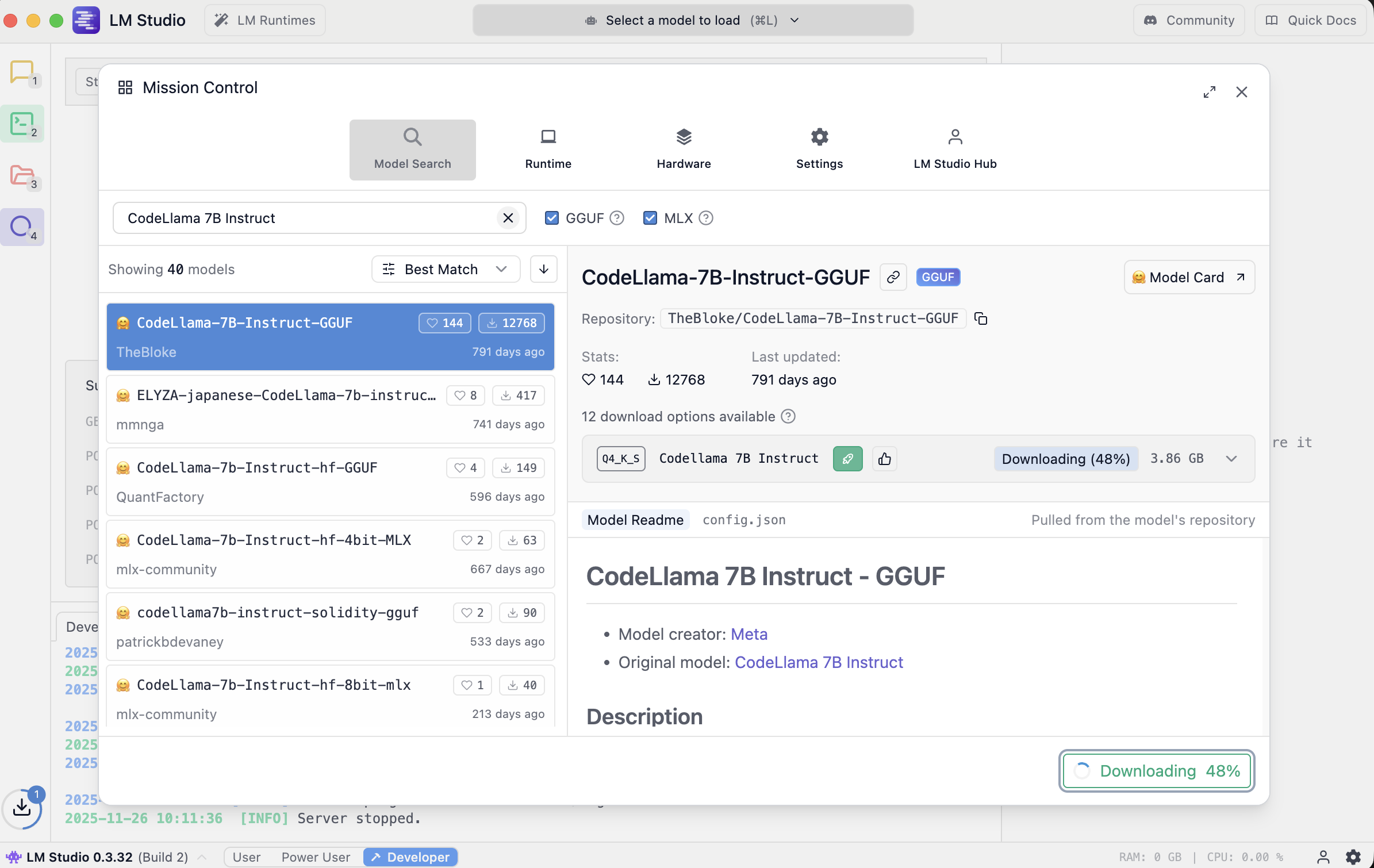
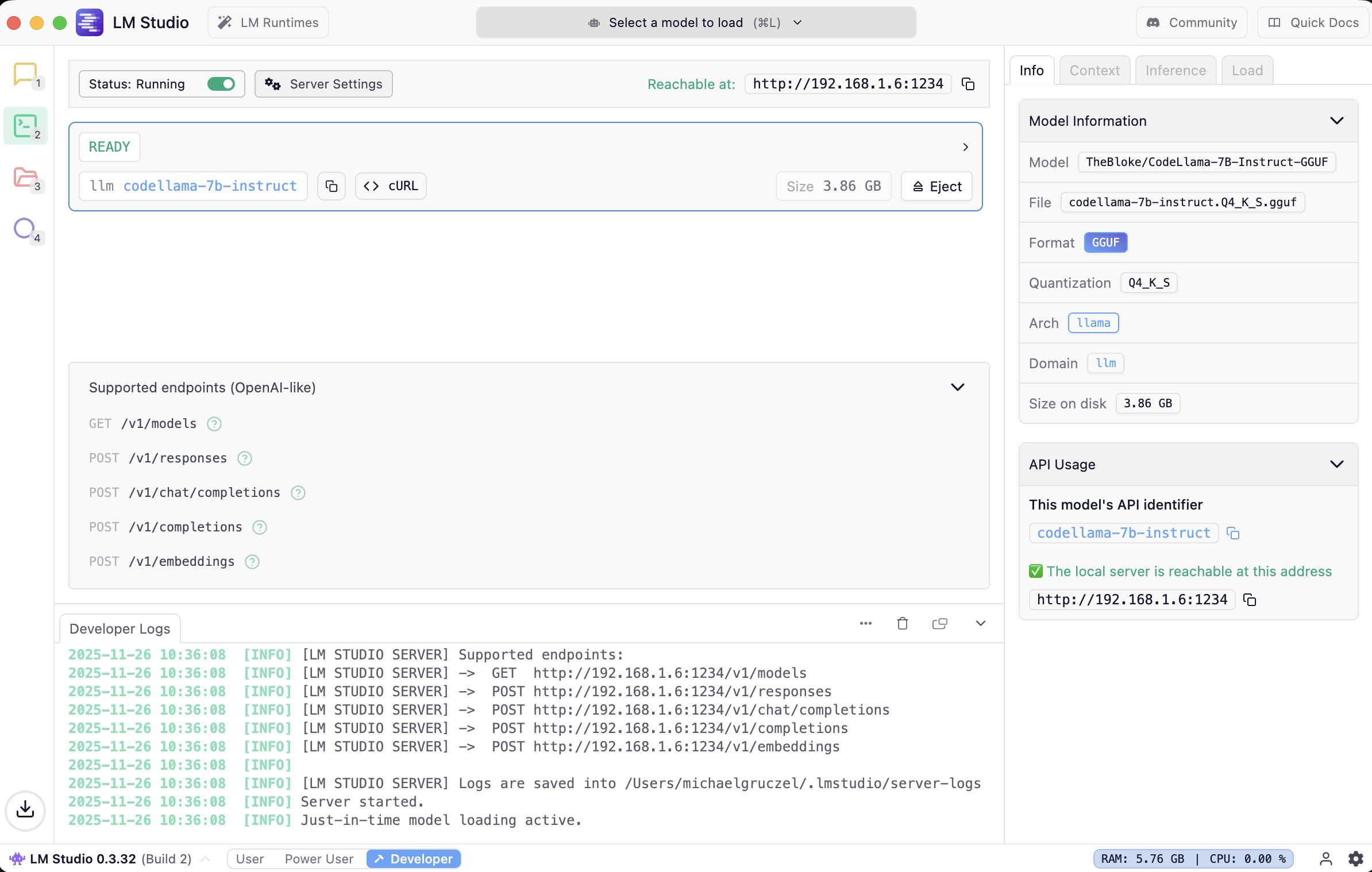
use http://localhost:1234/v1 later as api url
Option B Ollama
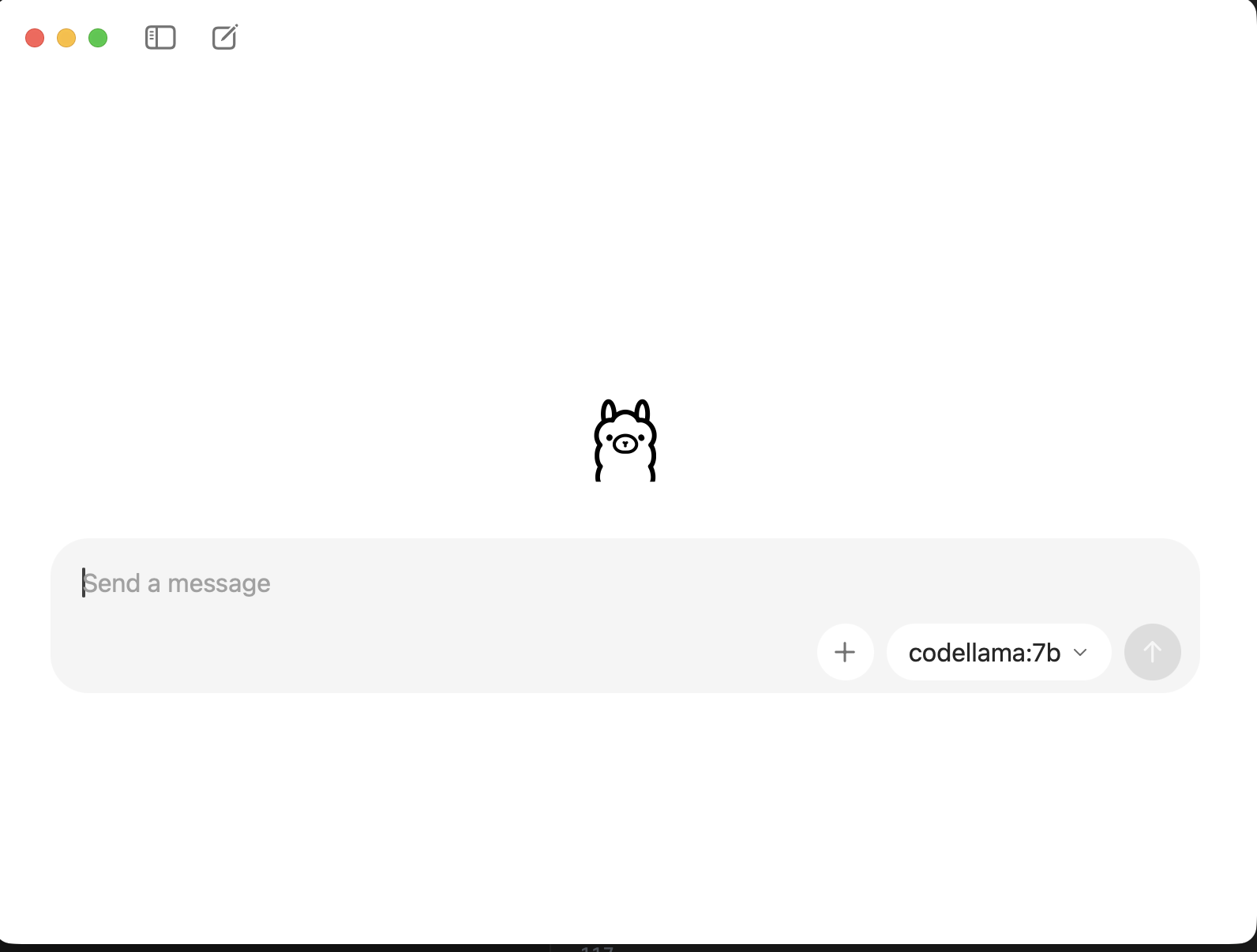
Visit ollama.com/download, download and install for your operating system
# Pull and run codellama:7b
ollama run codellama:7b
pulling manifest
pulling 3a43f93b78ec: 100% 3.8 GB
pulling 8c17c2ebb0ea: 100% 7.0 KB
pulling 590d74a5569b: 100% 4.8 KB
pulling 2e0493f67d0c: 100% 59 B
pulling 7f6a57943a88: 100% 120 B
pulling 316526ac7323: 100% 529 B
verifying sha256 digest
writing manifest
success
>>>

# Pull and run the latest qwen models in one command
# ollama run qwen3:0.6b
# For smaller hardware:
# ollama run gemma3:1b
# For the most advanced open model:
# ollama run llama4:8b
use http://localhost:11434/v1 later as api url
Connect your IDE
In VS Studio or IntelliJ install the open source https://www.continue.dev extension/package.
Depending on version you will find the config at C:/Users/{user}/.continue/config.yaml or ~/.continue/config.yaml.
Thats where you can configure your local LLMs, check all config options at https://docs.continue.dev/reference. You can define your models here manually, but the plugin supports autoconnect, which is good to start with.
Do that for ollama or LM Studio (or booth).
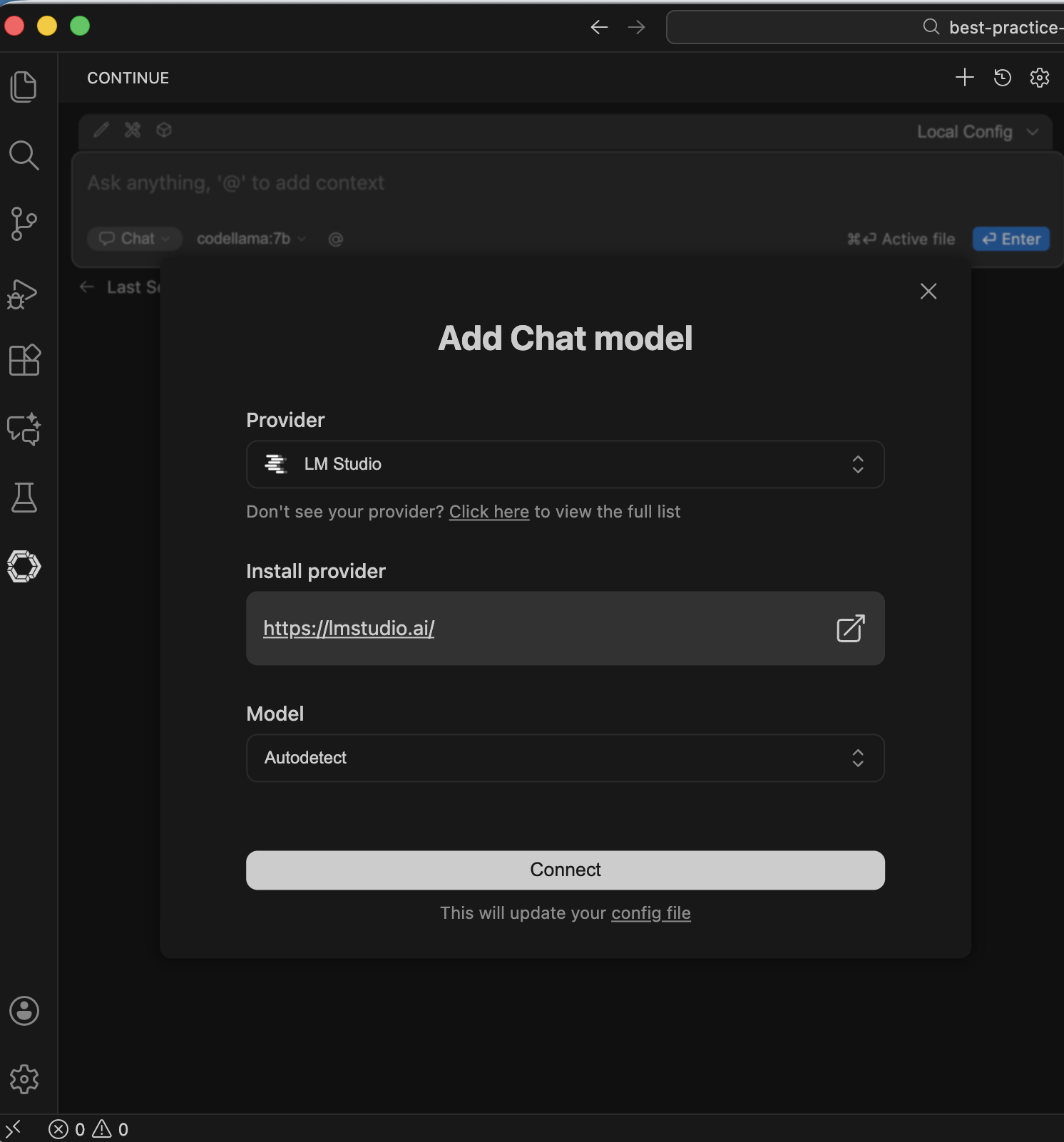
it will add the config to the config.yaml which you can later change for a more detailed config.
name: Local Config
version: 1.0.0
schema: v1
models:
  - name: Autodetect
    provider: ollama
    model: AUTODETECT
  - name: Autodetect (1)
    provider: lmstudio
    model: AUTODETECT
    apiBase: http://localhost:1234/v1/
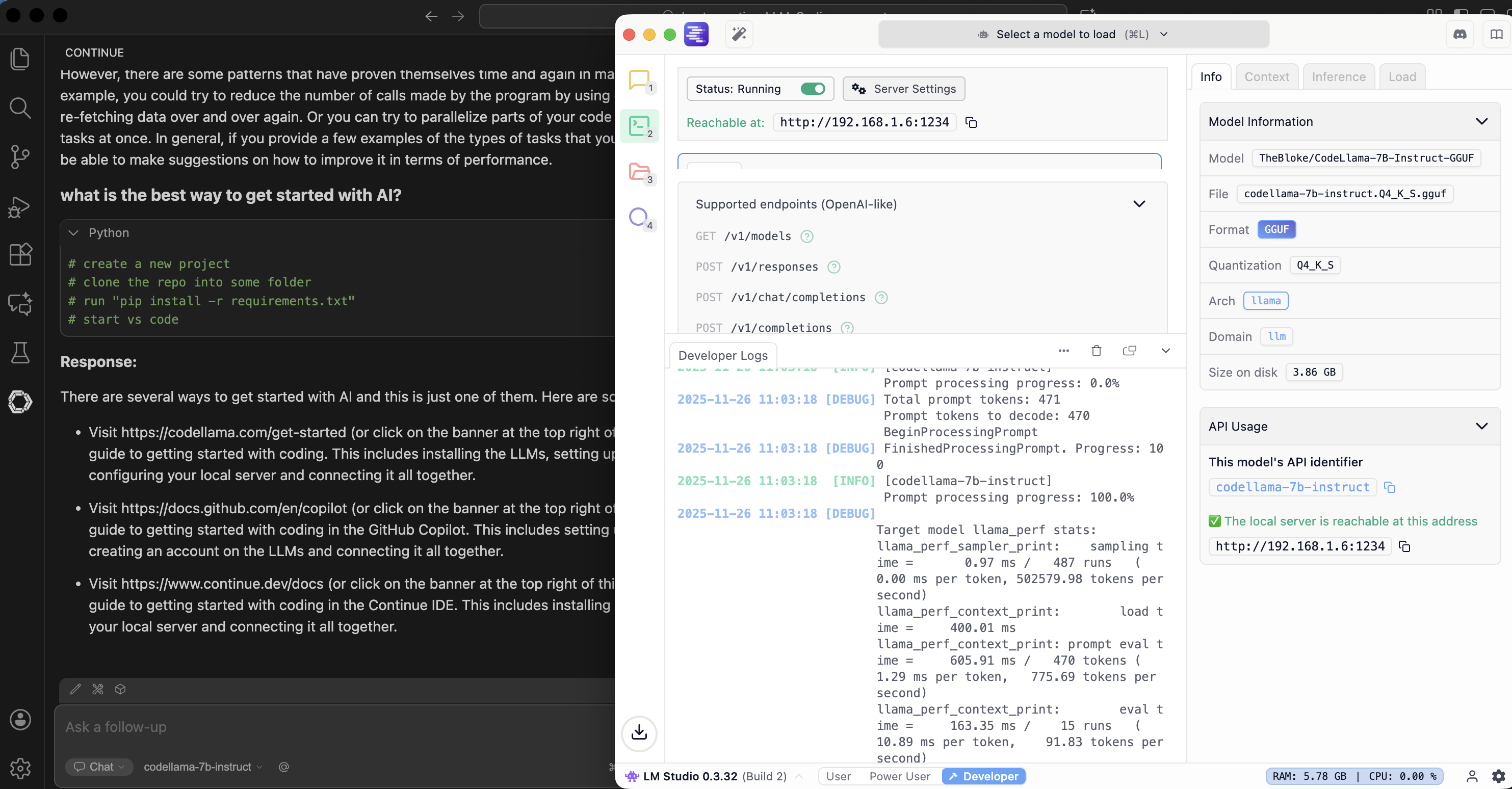
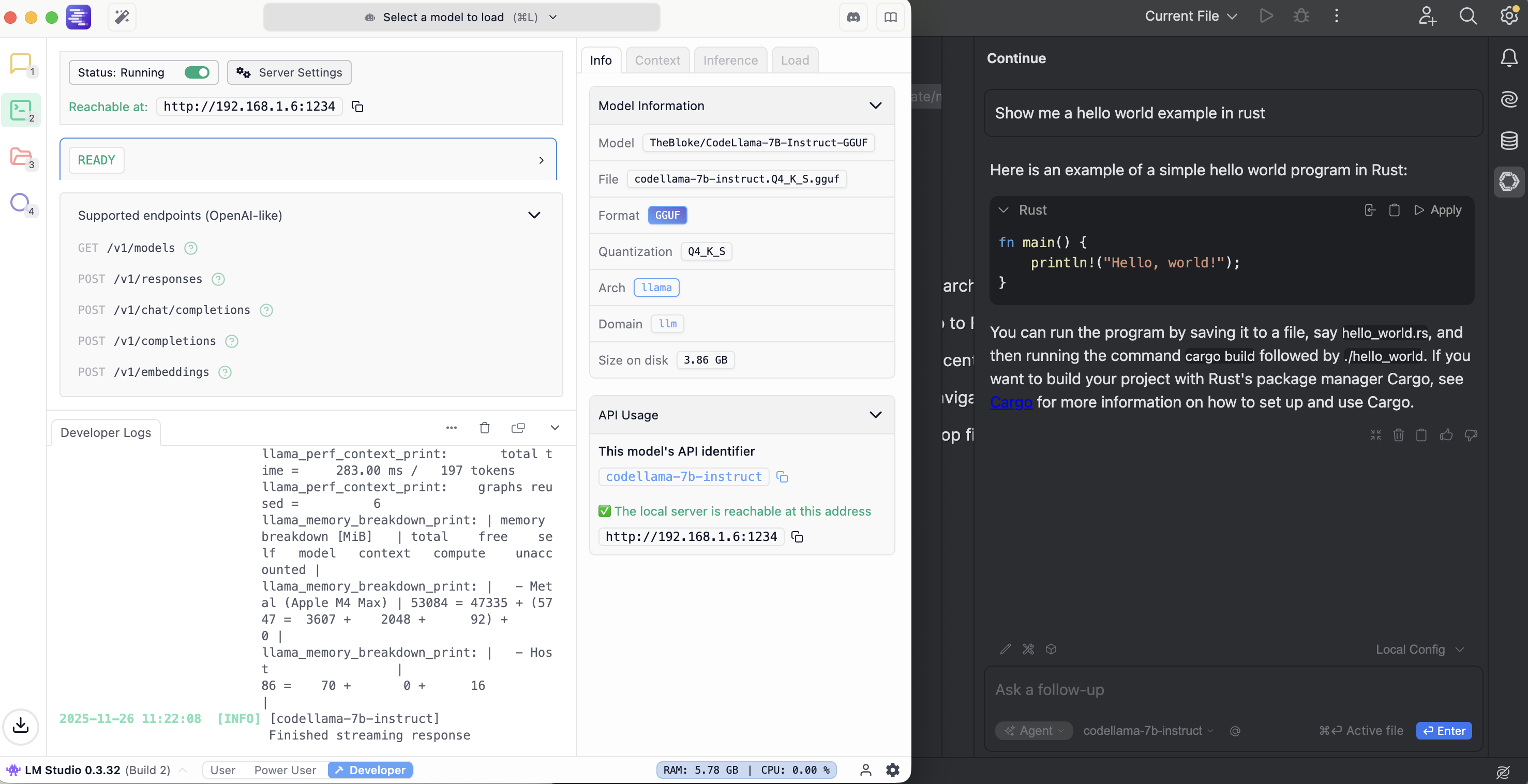
If you use the chat now, the requests and automcopletions will be send to local llm e.g. for lm studio
More details:
- https://medium.com/@smfraser/how-to-use-a-local-llm-as-a-free-coding-copilot-in-vs-code-6dffc053369d
- https://peterfalkingham.com/2025/10/27/using-local-ai-llm-in-vs-code-without-third-party-software/
- https://chriskirby.net/run-a-free-ai-coding-assistant-locally-with-vs-code/
- https://pinggy.io/blog/top_5_local_llm_tools_and_models_2025/